Installing Entware
Caution
Mipsel — devices based on MT7628/MT7621.
Aarch — devices based on MT7622/MT7981/MT7988 (ARM).
Installation§
MethodIAutomatic, online§
Tip
Since 4.2, Entware can be installed with one command through the CLI: 192.168.1.1/a.
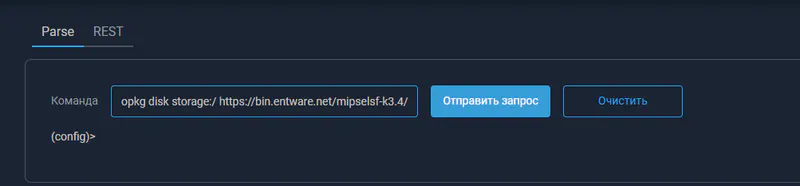
- Run the installation command:
For the Mipsel architecture
opkg disk storage:/ https://bin.entware.net/mipselsf-k3.4/installer/mipsel-installer.tar.gzFor the Aarch architecture
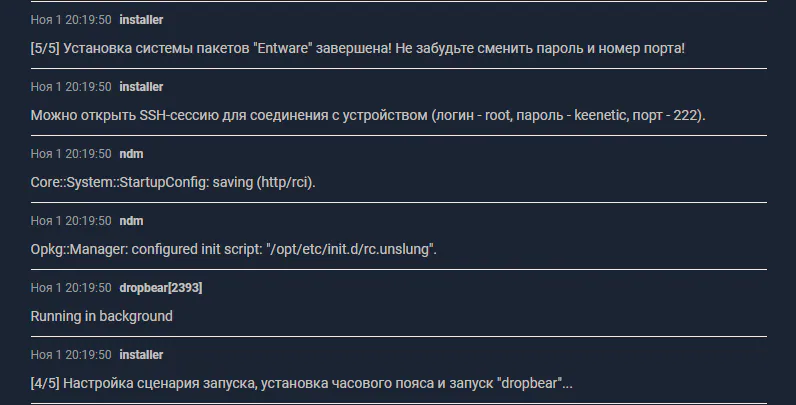
opkg disk storage:/ https://bin.entware.net/aarch64-k3.10/installer/aarch64-installer.tar.gz- Wait for the message about the finished installation in the log.
MethodIIManual, offline§
-
In the
Applicationssection, openBuilt-in storage, or an external drive formatted as ext4 if you plan to install Entware there.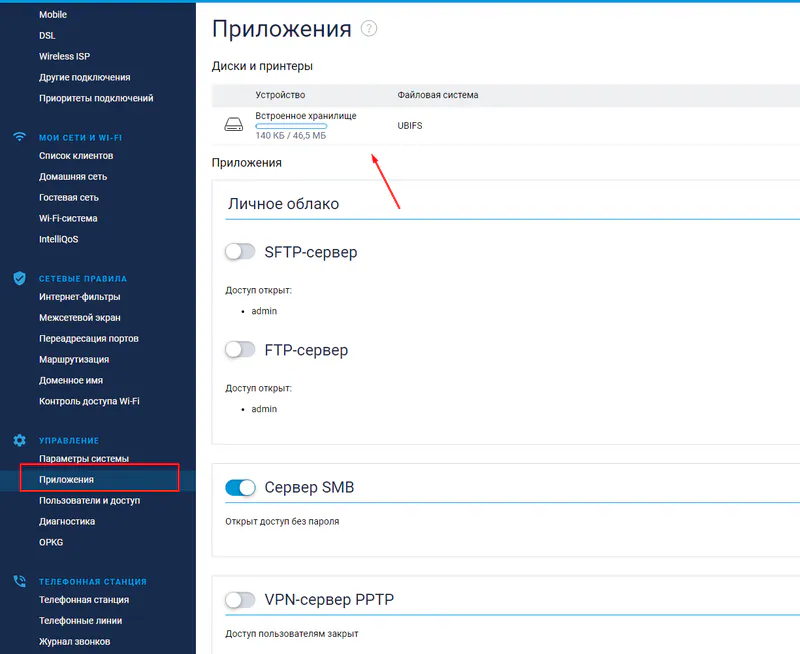
-
Create an
installfolder.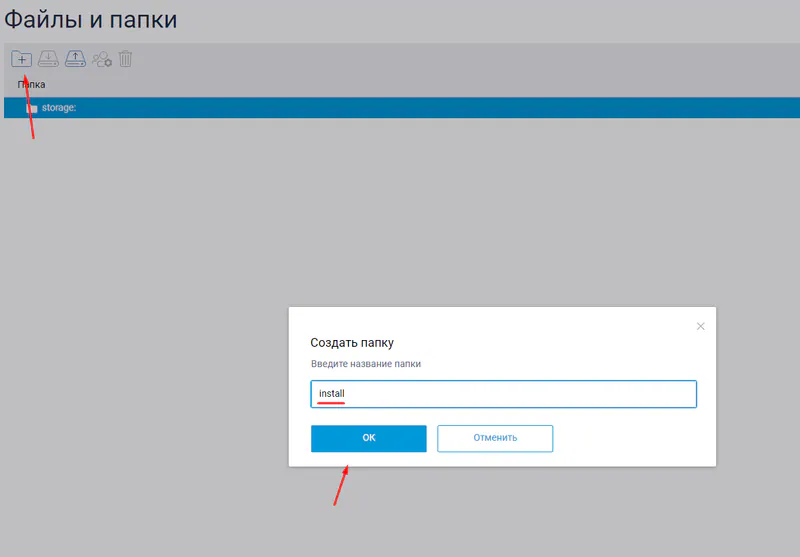
-
Put the matching archive into the folder.
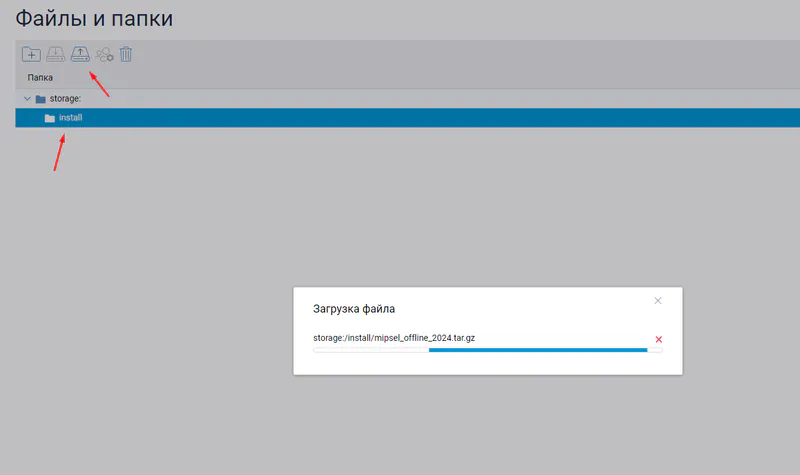
-
In the
OPKGsection, select the built-in storage or the external drive and save the settings.Note
If the drive was already selected, clear the selection first and then select it again.
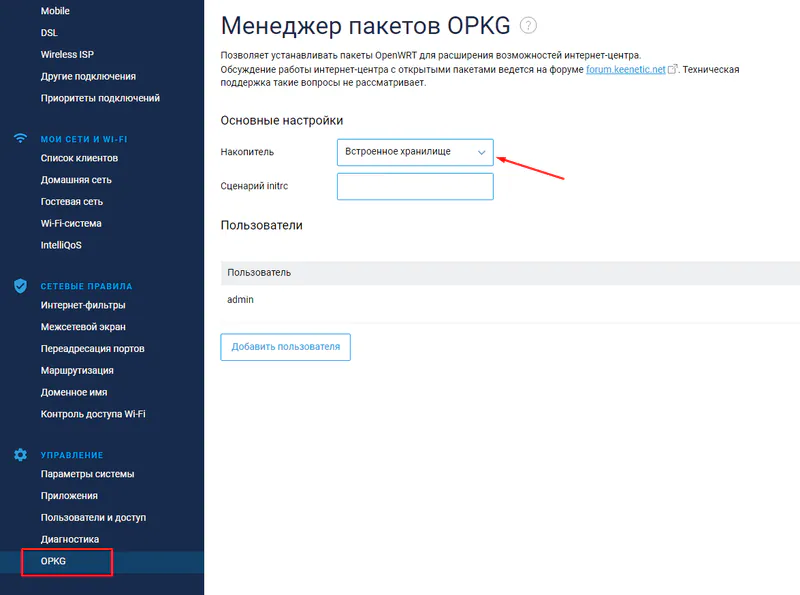
-
Wait until Entware is deployed on the drive.
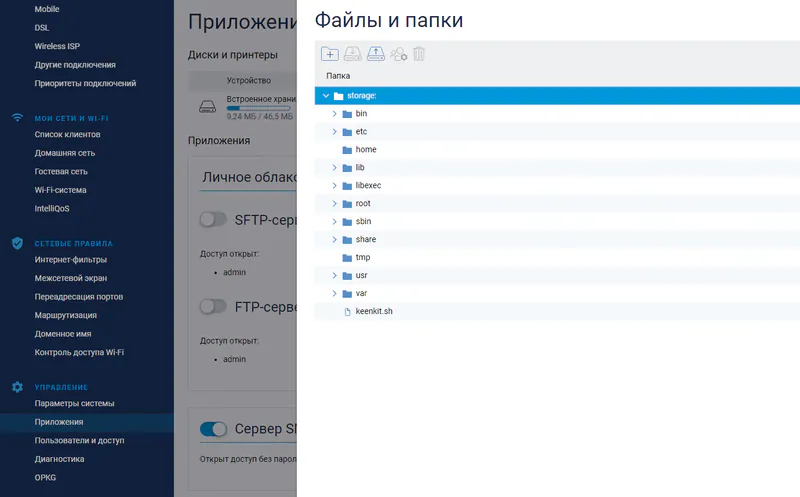
SSH§
Login: root
Password: keenetic
Port: 222
Changing the password:
passwdCannot connect over SSH§
- Connect through the CLI, for example:
192.168.1.1/a. - Run the commands:
exec shexec /opt/etc/init.d/S51dropbear restart
Telnet§
Login: admin
Password: your web interface password
Port: 23
Entering Entware:
exec sh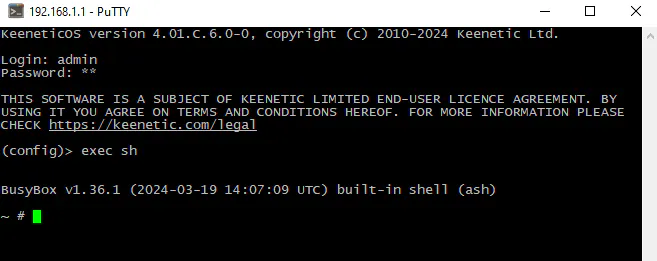
Updating§
Package lists:
opkg updateInstalled packages:
opkg upgrade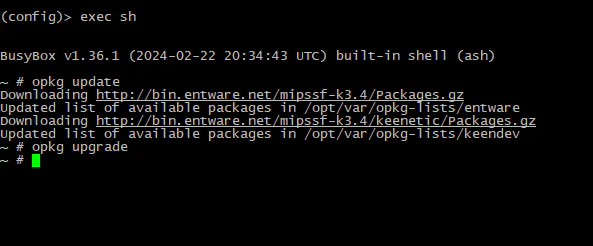
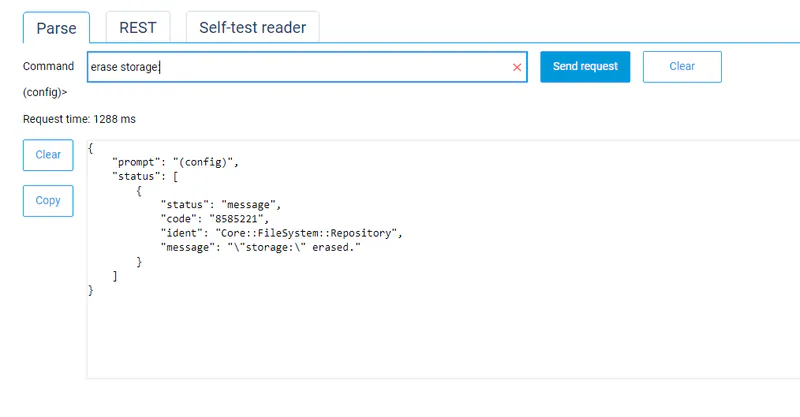
Formatting the drive§
Info
Applies to the built-in storage only
- Connect through the CLI, for example:
192.168.1.1/a. - Close all active Telnet and SSH sessions.
- Run the commands one at a time:
opkg no diskno system mount storage:erase storage:system mount storage: