MTS WG430223
Specifications§
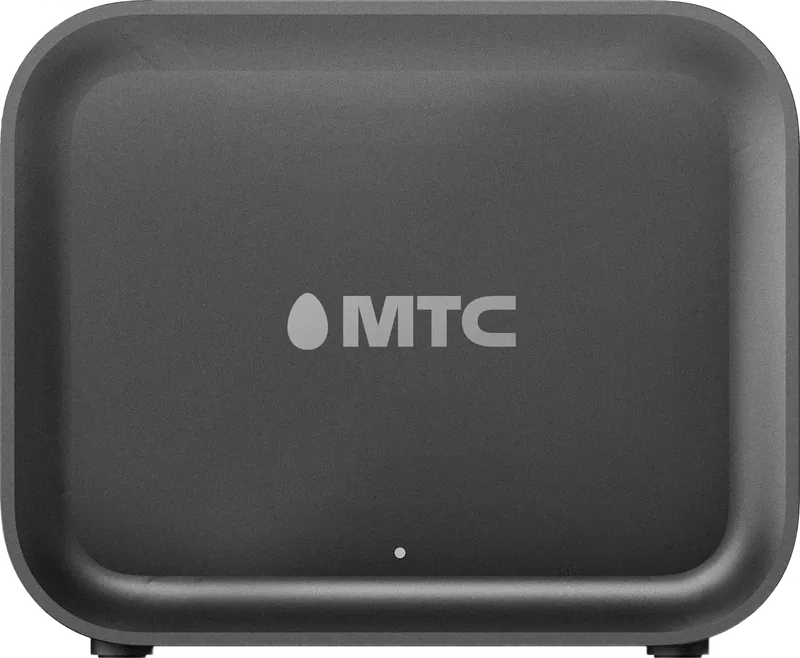
- Processor
- MediaTek MT7621AT, MIPS, 880 MHz
- Flash memory
- 128 MB NAND
- RAM
- 128 MB DDR3
- Ethernet
- 2 × 1G LAN + 1 × 1G WAN
- USB
- none
- Wi-Fi chip
- MediaTek MT7615DN
- Wi-Fi 5 GHz
- AC, 80MHz, 2x2, 867MB/s, 256QAM
- Wi-Fi 2.4 GHz
- N, 40MHz, 2x2, 300MB/s, 64QAM
Build features§
- FunctionalityExcept:
Cloud services
Components - Factory resetWith the Reset button
- LEDSystem
- Mesh compatibilityWith original devices and clones
- Built-in storage55.2 MB, Entware can be installed
- ComponentsMaximum set
Preparing for flashing§
- Download and unpack the firmware archive The “Download” button is in the panel under the device name.
- Connect the router to the computer with a cable (Ethernet) Flashing over Wi-Fi is not possible.
Installing from stock firmware§
First install the Breed bootloader (steps below), then choose one of the two flashing methods — Method #1 (via KeenBOOT, recommended) or Method #2 (via Breed and Telnet).
Installing the Breed bootloader§
- Running the script In the
Установка Breed(Breed installation) folder, runStart_MTC.bat. - Downgrading the firmware (if needed) If the current firmware is newer than
2.00.18, the script tells you so. Thedatafolder containsMTC_2.00.18.binfor a downgrade with a regular update through the web interface. - Backup After the script finishes, open Breed at
192.168.1.1and save theFull backupfrom the second section in case you want to return to the factory firmware. - Preparing the EEPROM The
datafolder will contain the originalEEPROM. Open the “Set MAC” tool, load the file, enter the MAC address from the sticker and download the generatedeeprom.bin.
MethodINew, recommended§
- Replace the bootloader with KeenBOOT.
- Upload
Firmware,EEPROMandU-Configfrom the archive one by one through the web interface, following the instructions. - Reboot the device.
Done!
Router access
- Web interface
- 192.168.1.1
- Login
admin- Password
12345678- Wi-Fi password
12345678
MethodIIOld§
-
Serving the files Start
HFS.exeand drag all.binfiles from the firmware folder into its window.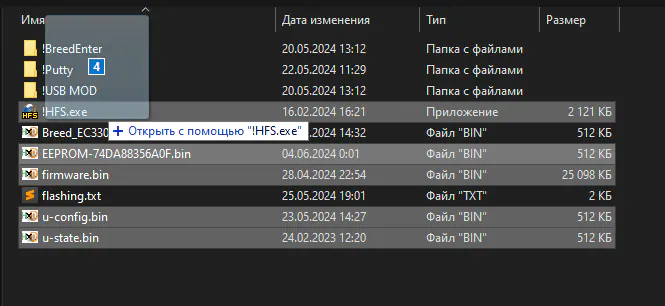
Tip
To minimize installation problems, it is recommended to set the IP address
192.168.1.2on the network card.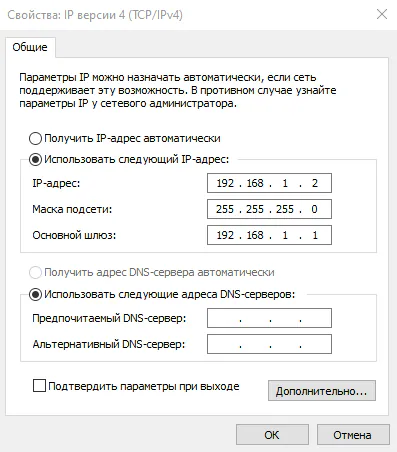
-
Flashing over Telnet Start PuTTY, connect over Telnet to
192.168.1.1on port23and paste the commands with the right mouse button, waiting for the previous one to finish.Warning
- Turn off your OS firewall and antivirus beforehand.
- The messages skipped bad blocks and Flash erasure failed with -5 after entering the commands are normal.
Caution
- Each line is a separate command. If it fails, run it again.
- Compare the IP in the
wgetcommands below with the IP shown in HFS. In the Breed bootloader it always starts with192.168.1.xxx.
flash erase 0x80000 0x7f00000wget http://192.168.1.2/u-config.binflash write 0x80000 0x80001000 0x80000flash write 0x4040000 0x80001000 0x80000wget http://192.168.1.2/eeprom.binflash write 0x100000 0x80001000 0x80000flash write 0x40c0000 0x80001000 0x80000wget http://192.168.1.2/firmware.binflash write 0x180000 0x80001000 0x1AB3F00flash write 0x4140000 0x80001000 0x1AB3F00wget http://192.168.1.2/u-state.binflash write 0x3fc0000 0x80001000 0x80000env set autoboot.command "boot flash 0x4140000"env savereset
Sample console output
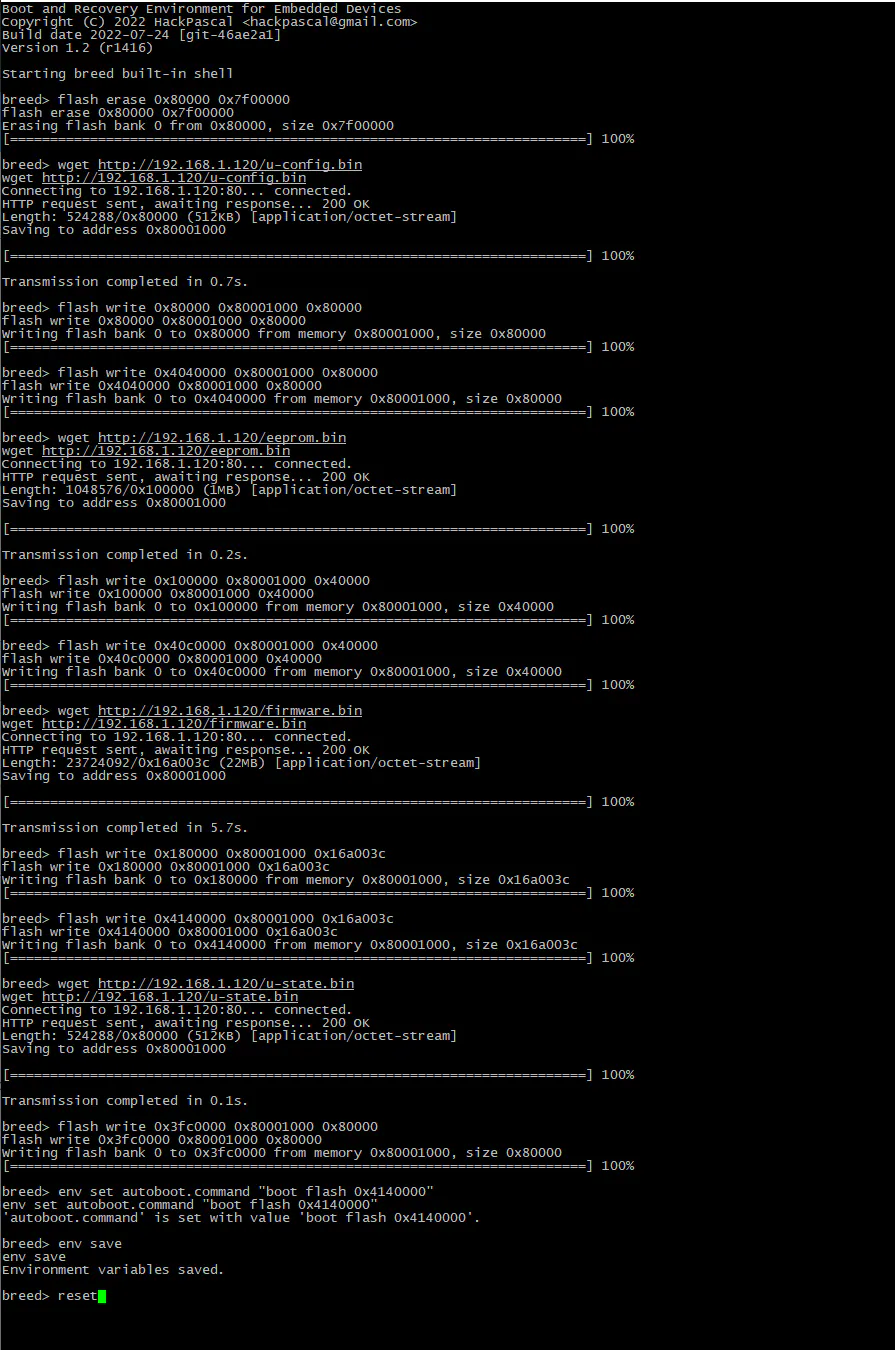
How to make sure everything was flashed correctly
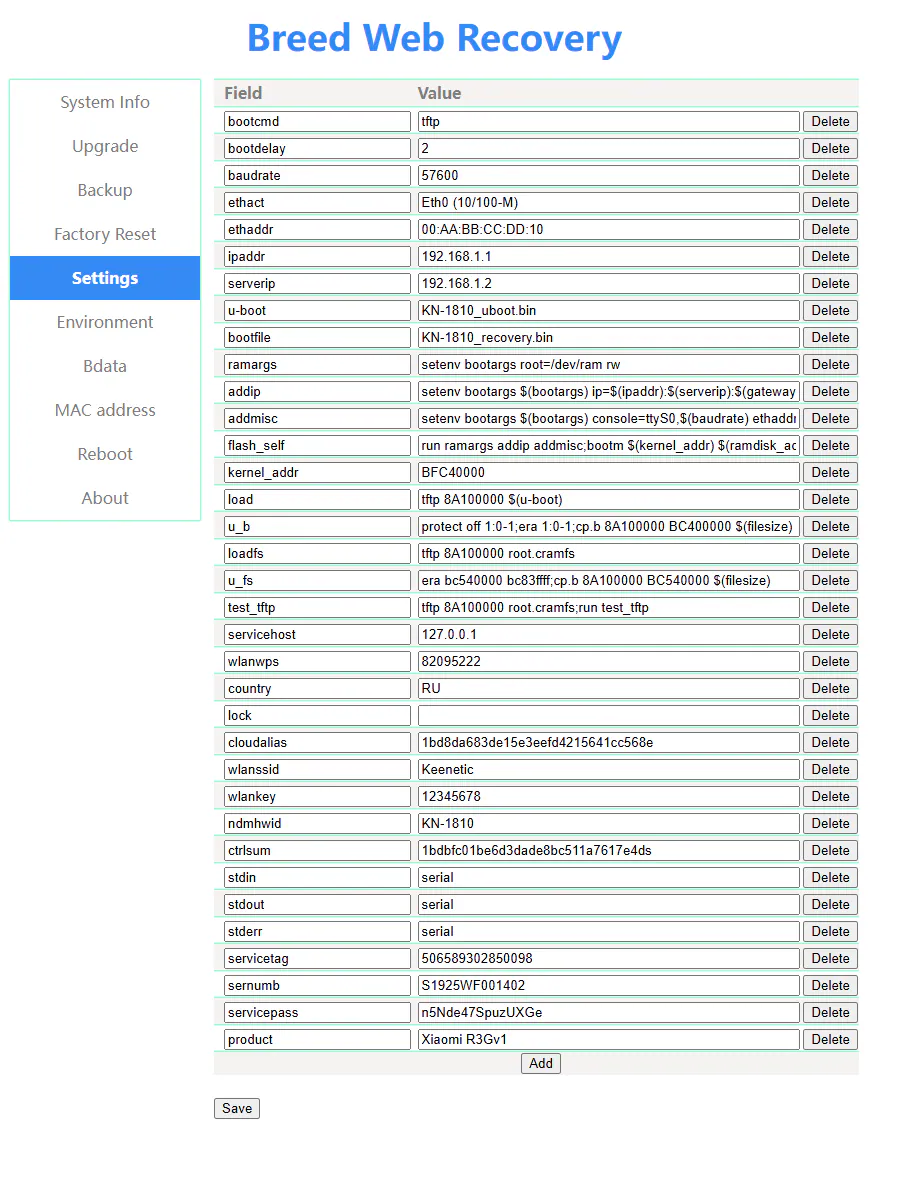
The Settings section shows the device's service data (it is enough that it is there; some fields may differ).
 The
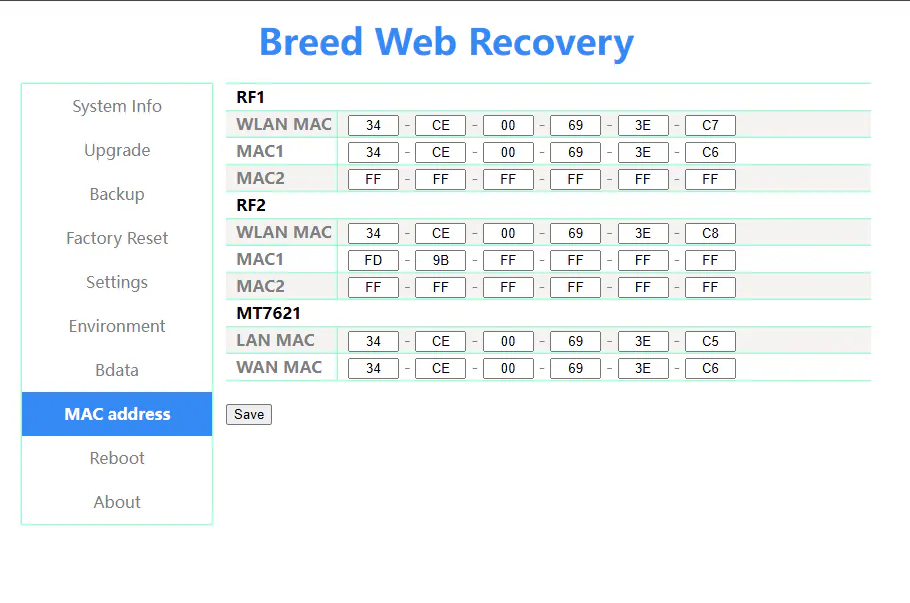
The MAC address section shows your MAC address from the device label or the one you entered in the converter (it may differ by ±1 in the last character).
After the reboot the device starts
Done!
Router access
- Web interface
- 192.168.1.1
- Login
admin- Password
12345678- Wi-Fi password
12345678
Updating the firmware§
To update, use any method for NAND memory.
Since version 5.0.7 the firmware can also be updated through the web interface.
Reverting to stock firmware§
You will need the backup saved before flashing. The steps are in the instructions for MT7621.