Xiaomi Redmi AC2100
Specifications§
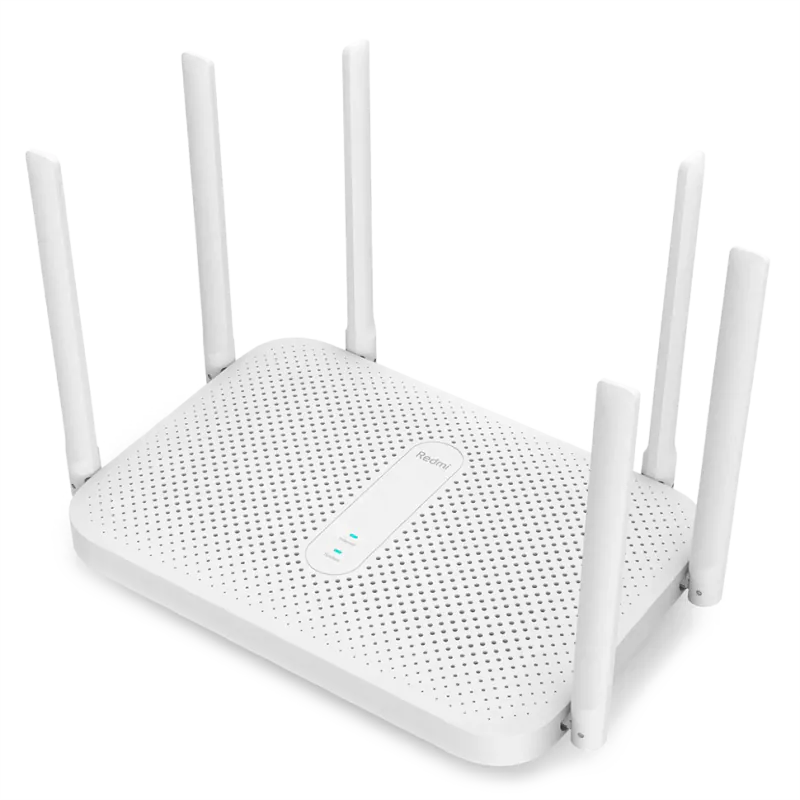
- Processor
- MediaTek MT7621AT, MIPS, 880 MHz
- Flash memory
- 128 MB NAND
- RAM
- 128 MB DDR3
- Ethernet
- 3 × 1G LAN + 1 × 1G WAN
- Wi-Fi chip
- MediaTek MT7603EN, MediaTek MT7615N
- Wi-Fi 5 GHz
- AC, 160MHz, 4x4, 1733MB/s
- Wi-Fi 2.4 GHz
- 40MHz, 2x2, 300MB/s
Build features§
- FunctionalityExcept:
Cloud services
Components - Factory resetWith the Reset button
- LEDsYes
- Mesh compatibilityWith original devices and clones
- Built-in storage55.2 MB, Entware can be installed
Preparing for flashing§
- Download and unpack the firmware archive The “Download” button is in the panel under the device name.
- Connect the router to the computer with a cable (Ethernet) Flashing over Wi-Fi is not possible.
Installing from stock firmware§
- Install OpenWrt.
If the Breed bootloader is already installed:
- Back up the Full partition
- Extract the EEPROM from the Full backup with the tool and do step 3 to set the MAC address
- Replace the bootloader with KeenBOOT and continue from step 8
-
In LuCI (the
System - Backup / Flash firmwaretab), save thefactorypartition (also known aseeprom). -
Open the “Set MAC” tool, load the EEPROM from the previous step and enter the MAC address from the sticker. Download the generated
eeprom.bin. -
Put the prepared EEPROM into the folder.
-
Install the
kmod-mtd-rwpackage -
Serve
KeenBOOT-Xiaomi-Redmi-AC2100.binfor your model from the archive withHFS.exe, or copy it to the router's storage over SSH -
Run over SSH:
Enter one command at a timecd /tmpwget http://192.168.1.2/KeenBOOT-Xiaomi-Redmi-AC2100.bininsmod mtd-rw i_want_a_brick=1mtd unlock /dev/mtd0mtd write /tmp/KeenBOOT-Xiaomi-Redmi-AC2100.bin Bootloaderreboot
-
Enter the KeenBOOT bootloader by holding the Reset button.
-
Upload
Firmware,EEPROMandU-Configfrom the archive one by one through the web interface following the instructions. -
Reboot into the system.
Done!
Router access
- Web interface
- 192.168.1.1
- Login
admin- Password
12345678- Wi-Fi password
12345678
Updating the firmware§
To update, use any method for NAND memory.
Since version 5.0.7 the firmware can also be updated through the web interface.
Reverting to stock firmware§
You will need the backup saved before flashing. The steps are in the instructions for MT7621.