Xiaomi AX3000T
Specifications§
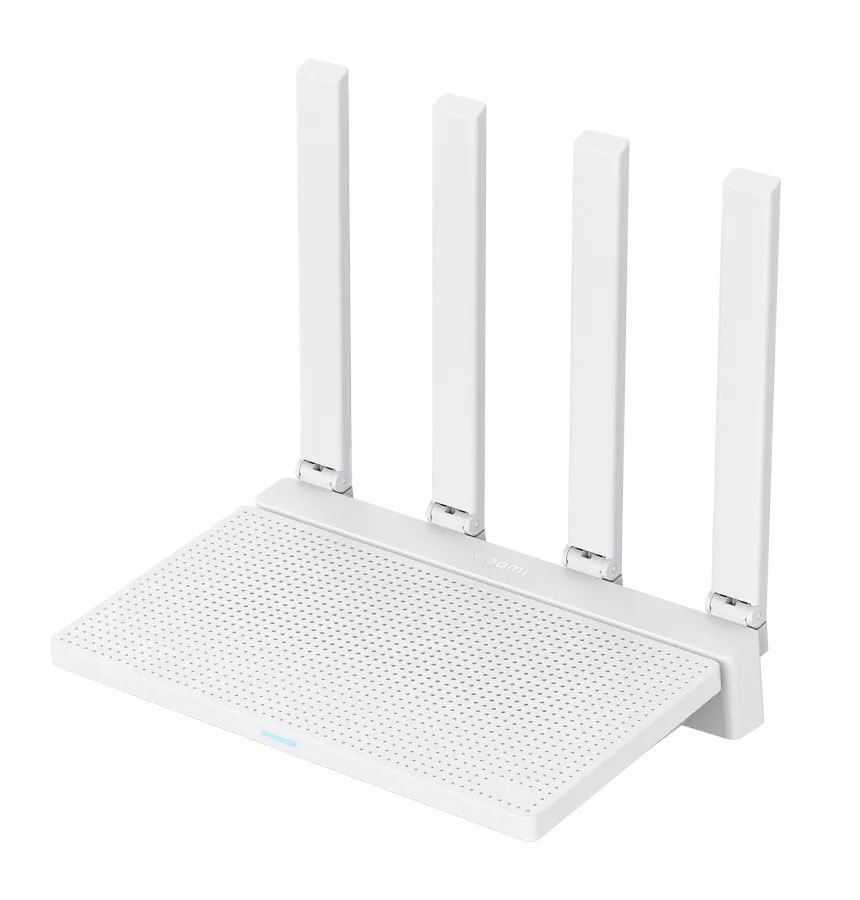
- Processor
- MediaTek MT7981B, aarch64, 1300 MHz
- Flash memory
- 128 MB NAND
- RAM
- 256 MB DDR3
- Ethernet
- 4 × 1G LAN
- USB
- none
- Wi-Fi chip
- MediaTek MT7976CN
- Wi-Fi 5 GHz
- AX, 160MHz, 2x2, 2402MB/s, 1024QAM
- Wi-Fi 2.4 GHz
- AX, 40MHz, 2x2, 574MB/s, 256QAM
Build features§
- FunctionalityExcept:
Cloud services
Components - Factory resetWith the Reset button
- Mesh buttonYes
- LEDSystem
Internet connected - Mesh compatibilityWith original devices and clones
- Built-in storage48.3 MB, Entware can be installed
Preparing for flashing§
Before flashing, make sure that
- The stock firmware version on the router is below 1.0.90.
- The production date allows flashing (see the table below). Routers with an unsuitable date are not supported and will not be.
- Both memory models — ESMT and Winbond — are supported, there is no need to check the installed memory.
- You alone are responsible for your device.
-
Check the production date It is printed on the sticker on the router's box.
Device version Allowed production date 🇨🇳 Chinese up to 2024.06 inclusive 🌍 Global up to 2024.12 inclusive -
Download and unpack the firmware archive The “Download” button is in the panel under the device name.
-
Connect the router to the computer with a cable (Ethernet) Flashing over Wi-Fi is not possible.
Installing from stock firmware§
- Factory reset Reset the router to factory settings.
- Initial setup Go through the setup wizard and set a password for the web interface — remember it.
- First script Run
1_ax3000t.exe, enter the password you set and wait until it finishes. The router then reboots. - Second script Wait for the router to boot, restore the wired connection and run
Xiaomi_AX3000T_flasher.exe. Click “Install” and wait until it finishes — the router reboots with the new firmware automatically.
Done!
Router access
- Web interface
- 192.168.1.1
- Login
admin- Password
12345678- Wi-Fi password
12345678
Reducing RAM usage (optional)
To reduce RAM usage, you can turn off WHNAT hardware acceleration — more details. Enter the commands in the router's CLI one at a time:
Enter one command at a time
interface WifiMaster1 no whnatno ppe hardwaresystem configuration save
Updating the firmware§
To update, use KeenBOOT or KeenKit — the methods for NAND memory.
Since version 5.0.7 the firmware can also be updated through the web interface.
Reverting to stock firmware§
The revert is done from a full backup through the KeenBOOT bootloader. The steps are in the instructions for MT7981.