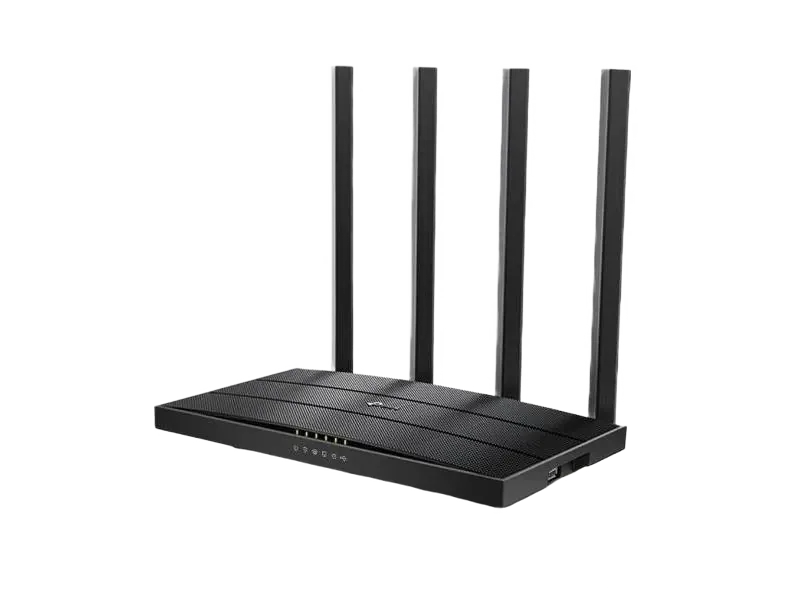
TP-Link Archer C6U v1
Specifications§
- Processor
- MediaTek MT7621AT, MIPS, 880 MHz
- Flash memory
- 16 MB SPI
- RAM
- 128 MB
- Ethernet
- 4 × 1G LAN + 1 × 1G WAN
- USB
- 1 × USB 2.0
- Wi-Fi chip
- MediaTek MT7603E, MediaTek MT7613BE
- Wi-Fi 5 GHz
- AC, 80MHz, 2x2, 867MB/s, 256QAM
- Wi-Fi 2.4 GHz
- N, 40MHz, 2x2, 300MB/s, 64QAM
Build features§
- FunctionalityExcept:
Cloud services - Factory resetWith the Reset button
- LEDsYes
- Mesh compatibilityWith original devices and clones
- WPS buttonConfigured as FN1, any action within the system can be assigned
- Modem rebootWorks without a hardware mod
- Built-in storageEntware can be installed on USB only
Preparing for flashing§
- Download and unpack the firmware archive The “Download” button is in the panel under the device name.
- Connect the router to the computer with a cable (Ethernet) Flashing over Wi-Fi is not possible.
Installing from stock firmware§
- Installing OpenWrt Install OpenWrt from the
Breed -> Data -> openwrt-23.05.4-tplink_archer-c6u-v1-squashfs-factory.binfolder. - Preparing to enter the bootloader Run
BreedEnter.exeas administrator fromKeenetic/BreedEnter(if you get an error, installWinPcap.exe). Click the only button in the Chinese interface — it is needed to enter the bootloader later.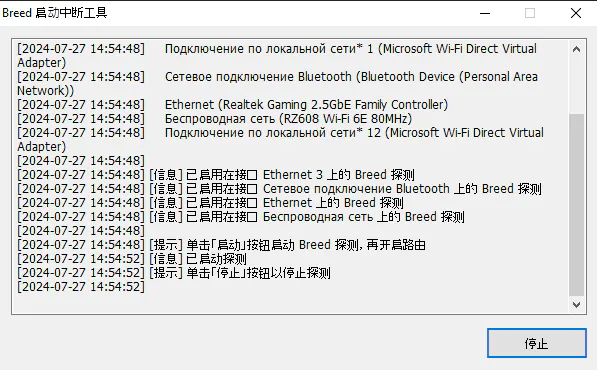
- Running the script Run
!Start.batfrom theBreedfolder. The script installs the Breed bootloader, saves backups of the factory bootloader and the EEPROM to theDatafolder, builds a full firmware image with your EEPROM and individual service data and puts it into theKeeneticfolder. - Backup Enter the Breed bootloader at
192.168.1.1and be sure to save aFullbackup. Later you can use it to revert to OpenWrt — the steps are the same as in the next step. CloseBreedEnterat this point.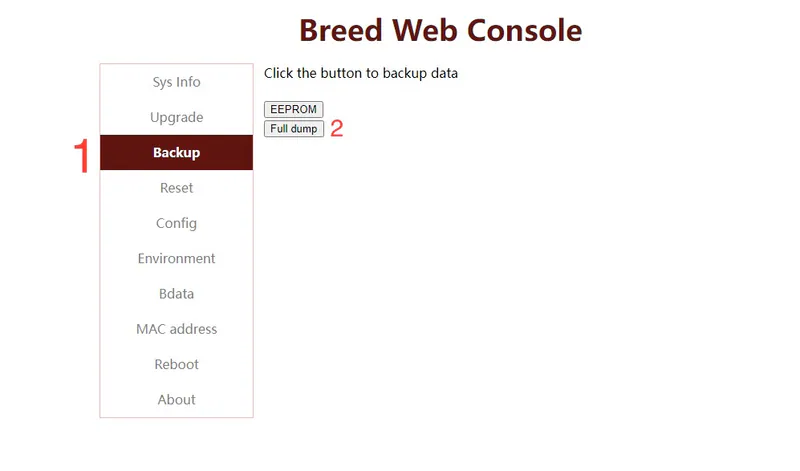
- Flashing In the second item of the second tab, choose the
Keenetic-C6U-XXX.binfile created by the script, clear the last 2 checkboxes and confirm the upload.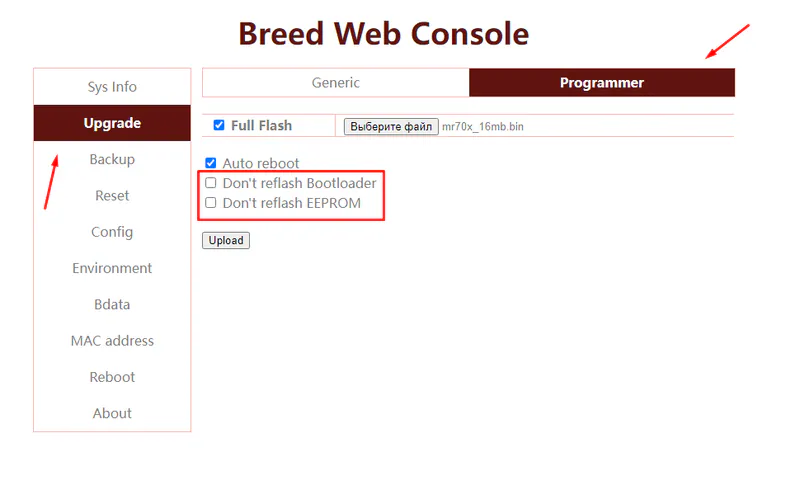
After the reboot the device starts.
Done!
Router access
- Web interface
- 192.168.1.1
- Wi-Fi password
12345678
Updating the firmware§
To update, use the method for SPI memory.
Reverting to OpenWrt§
- Enter Breed and upload the
full.binsaved in step 4, as shown in the picture from step 5. - To restore the factory bootloader, use
Breed -> Upgrade -> Generic -> Bootloaderwith the file the script backed up.
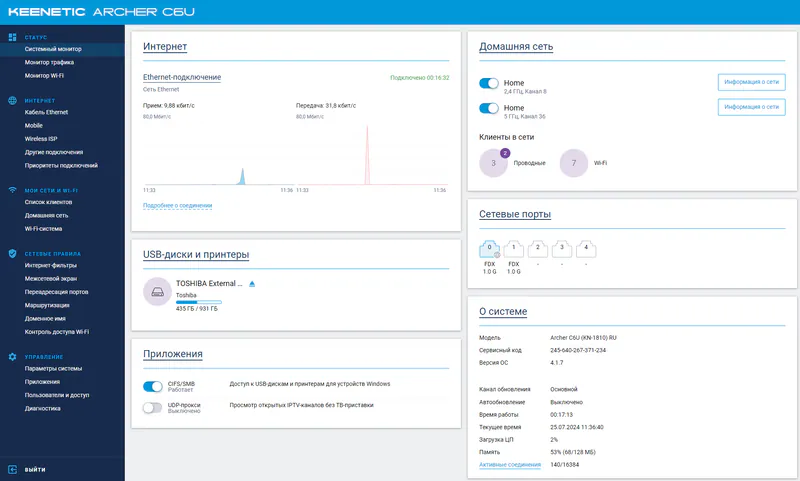
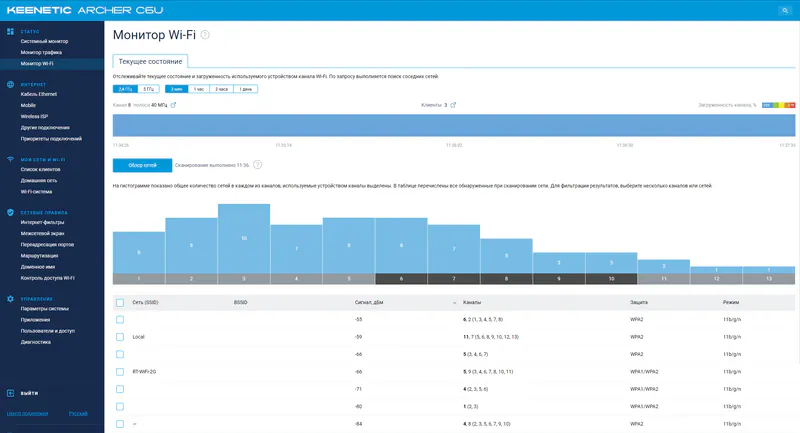
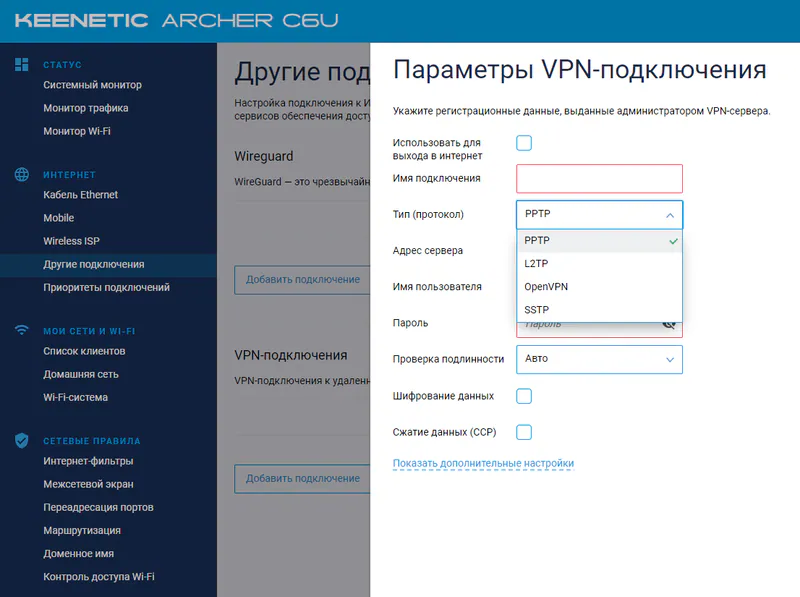
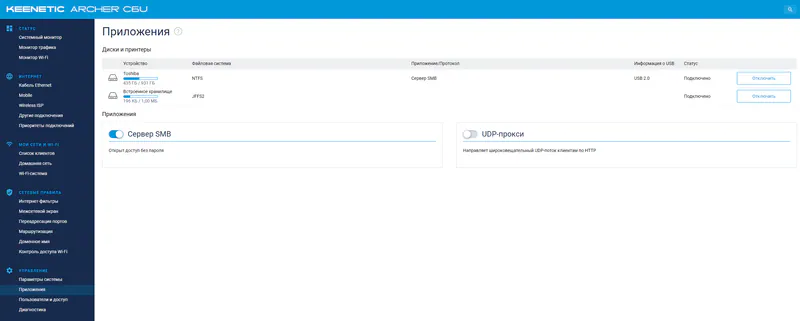
System screenshots§
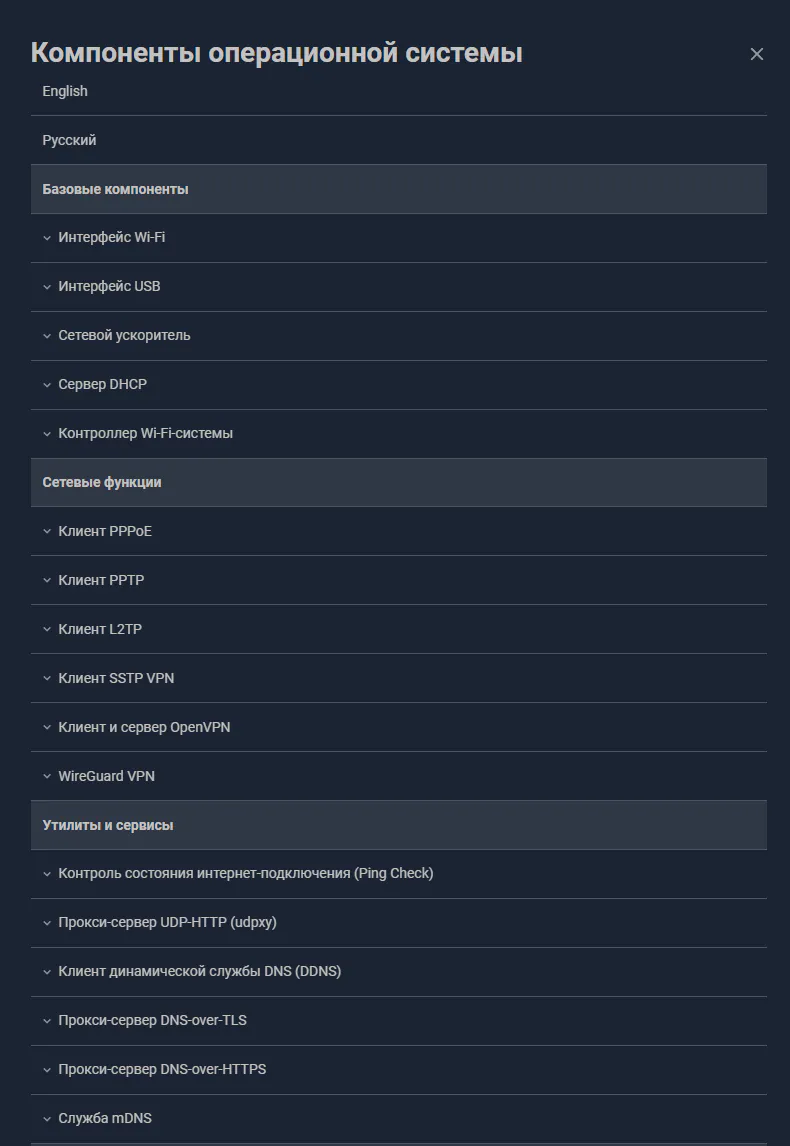
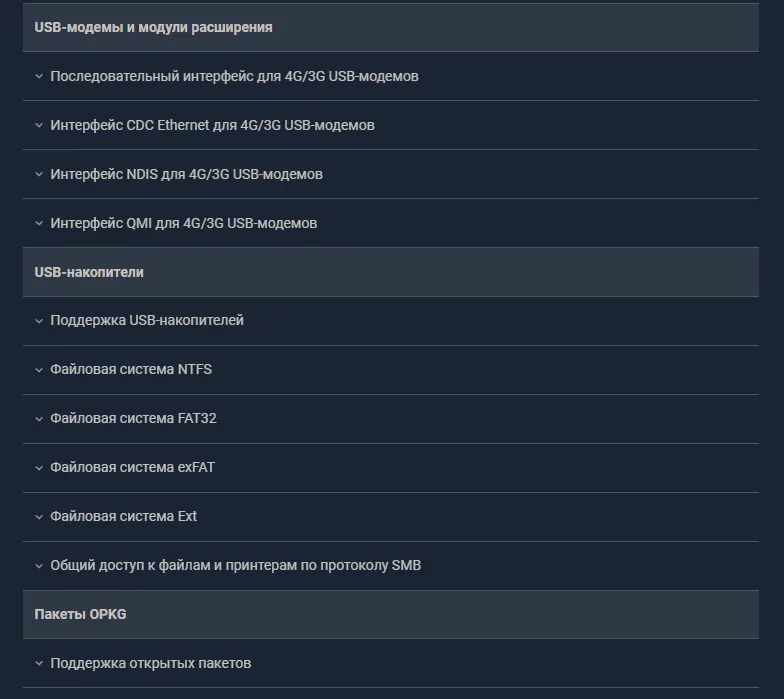
Installed components§