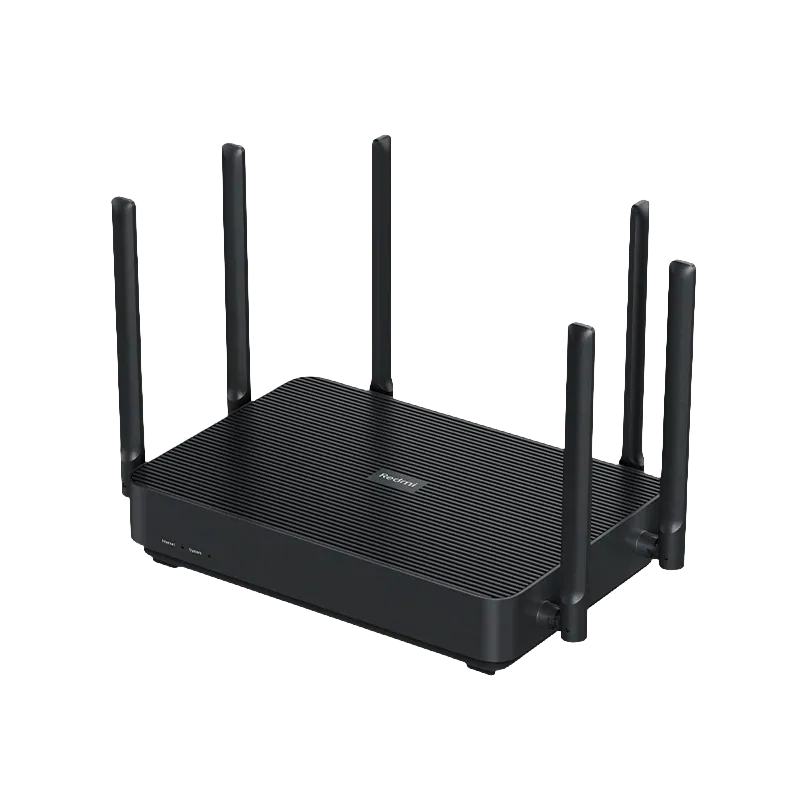
Redmi AX6S/Xiaomi AX3200
Note
Both the Chinese RB03 Redmi AX6S and the global RB01 Xiaomi AX3200 are supported.
Specifications§
- Processor
- MediaTek MT7622B, aarch64, 1350 MHz
- Flash memory
- 128 MB NAND
- RAM
- 256 MB
- Ethernet
- 3 × 1G LAN + 1 × 1G WAN
- USB
- none
- Wi-Fi chip
- MediaTek MT7622B, MediaTek MT7915E
- Wi-Fi 5 GHz
- AX, 160MHz, 2x2, 2402MB/s, 1024QAM
- Wi-Fi 2.4 GHz
- N, 40MHz, 4x4, 800MB/s, 256QAM
Build features§
- FunctionalityExcept:
Cloud services
Components - Factory resetWith the Reset button
- MESH buttonConfigured as FN1 for any action within the system
- LEDsYes
- Mesh compatibilityWith original devices and clones
- Built-in storage71.3 MB, Entware can be installed
Preparing for flashing§
- Download and unpack the firmware archive The “Download” button is in the panel under the device name.
- Connect the router to the computer with a cable (Ethernet) Flashing over Wi-Fi is not possible.
Installing from stock firmware§
- Factory reset Reset the router to factory settings.
- Initial setup Go through the setup wizard and set a password for the web interface — remember it.
- First script Run
1_ax6s.exe, enter the password you set and wait until it finishes. The router then reboots. - Second script Wait for the router to boot, restore the wired connection and run
Redmi_AX6S_flasher.exe. Click “Install” and wait until it finishes — the router reboots with the new firmware automatically.
Done!
Router access
- Web interface
- 192.168.1.1
- Login
admin- Password
12345678- Wi-Fi password
12345678
Updating and recovery§
-
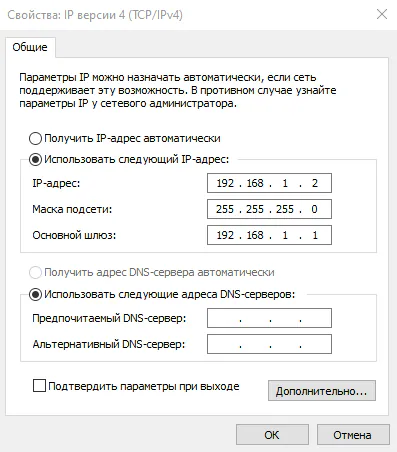
Connection Connect the router with a cable and set a static IP.
-
Recovery utility Download the recovery utility.
-
Starting TFTP Run
tftpd64.exe. -
Upload Hold Reset and power on the router, keeping the button pressed for about 15 seconds. The program starts uploading the file.
Since version 5.0.7 the firmware can also be updated through the web interface.
Reverting to stock firmware§
You will need the factory partition backups. The steps are in the instructions for MT7622.