CMCC RAX3000M/CMCC RAX3000Me
Specifications§
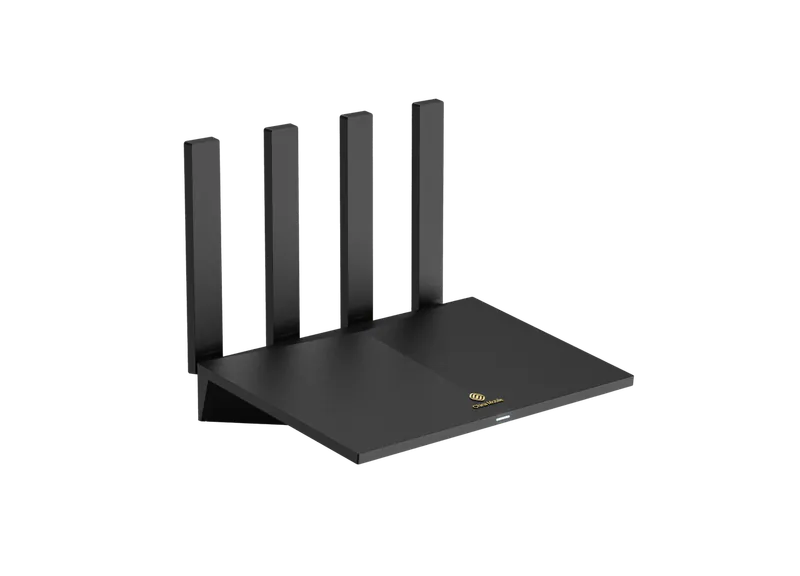
- Processor
- MediaTek MT7981B, aarch64, 1300 MHz
- Flash memory
- 128 MB NAND
- RAM
Me-model - 512 MB DDR3
- RAM
M-model - 512 MB DDR4
- Ethernet
- 3 × 1G LAN + 1 × 1G WAN
- USB
- 1 × USB 3.0
- Wi-Fi chip
- MediaTek MT7976CN
- Wi-Fi 5 GHz
- AX, 160MHz, 2x2, 2402MB/s, 1024QAM
- Wi-Fi 2.4 GHz
- AX, 40MHz, 2x2, 574MB/s, 256QAM
Build features§
- FunctionalityExcept:
Cloud services
Components - Factory resetWith the Reset button
- WPS buttonConfigured as Wi-Fi
- Mesh buttonYes
- LEDSystem
Internet connected - Mesh compatibilityWith original devices and clones
- Built-in storage70.9 MB, Entware can be installed
- Modem rebootRequires a hardware mod
Caution
FORESEE F35SQA001G memory and the Airoha AN8855 switch are not supported.
Preparing for flashing§
- Find out the model —
MeorMIt is printed on the sticker on the bottom of the router. File names and the installation order depend on it. - Download and unpack the firmware archive The “Download” button is in the panel under the device name.
- Connect the router to the computer with a cable (Ethernet)
About the flasher programs
Every *_flasher.exe prepares the EEPROM, generates new service data and installs the firmware. When it finishes, the router reboots automatically.
Installing from stock firmware§
Info
For RAX3000Me only. The M model cannot be installed directly from the stock firmware — use the installation from OpenWrt.
- Factory reset Reset the router to factory settings.
- Creating the configuration Run
1_config-creator.exeand enter the serial number from the sticker on the bottom of the router. A configuration filecfg_yeezyio.confappears next to the program. - Uploading the configuration Open the router's web interface at
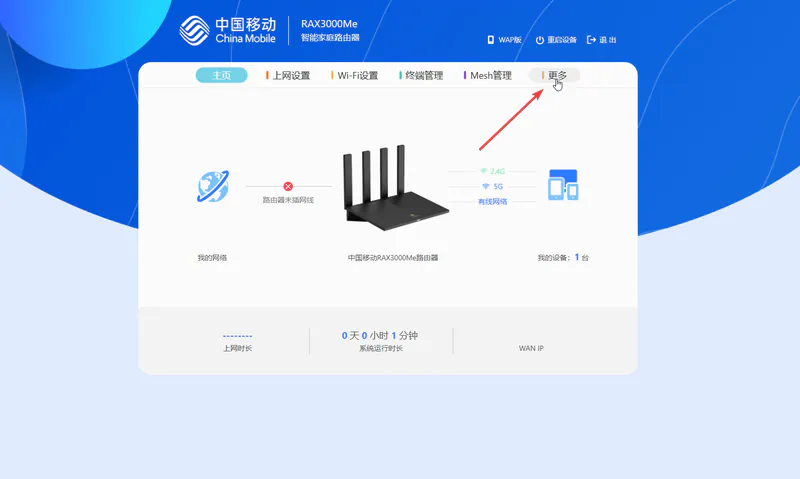
192.168.10.1and uploadcfg_yeezyio.confas shown in the screenshots below.

- Flashing After the reboot, run
CMCC_RAX3000ME_flasher.exe, choose Stock firmware and click “Install”. Wait until it finishes — the router reboots with the new firmware.
Done!
Router access
- Web interface
- 192.168.1.1
- Wi-Fi password
12345678
Installing from OpenWrt§
RAX3000Me§
- Uploading the image In the OpenWrt web interface, upload
rax3000m-me-openwrt.itbas an update (sysupgrade). - Flashing After the reboot, run
CMCC_RAX3000ME_flasher.exe, choose OpenWrt and click “Install”. Wait until it finishes. - System start The device starts in about 3 minutes.
Done!
Router access
- Web interface
- 192.168.1.1
- Wi-Fi password
12345678
RAX3000M§
Info
The M model cannot be installed directly from the stock firmware: install OpenWrt yourself first, then follow the steps below.
- Install OpenWrt on the router yourself.
- Uploading the image In the OpenWrt web interface, upload
rax3000m-me-openwrt.itbas an update (sysupgrade). - Flashing After the reboot, run
CMCC_RAX3000M_flasher.exe, choose OpenWrt and click “Install”. Wait until it finishes. - System start The device starts in about 3 minutes.
Done!
Router access
- Web interface
- 192.168.1.1
- Wi-Fi password
12345678
Updating the firmware§
To update, use KeenBOOT or KeenKit — the methods for NAND memory.
Since version 5.0.7 the firmware can also be updated through the web interface.
Reverting to stock firmware§
The revert is done from a full backup through the KeenBOOT bootloader. The steps are in the instructions for MT7981.
Rebooting the USB modem (USB-Mod)§
Info
The mod is needed to power-cycle the USB modem — more details
Soldering required
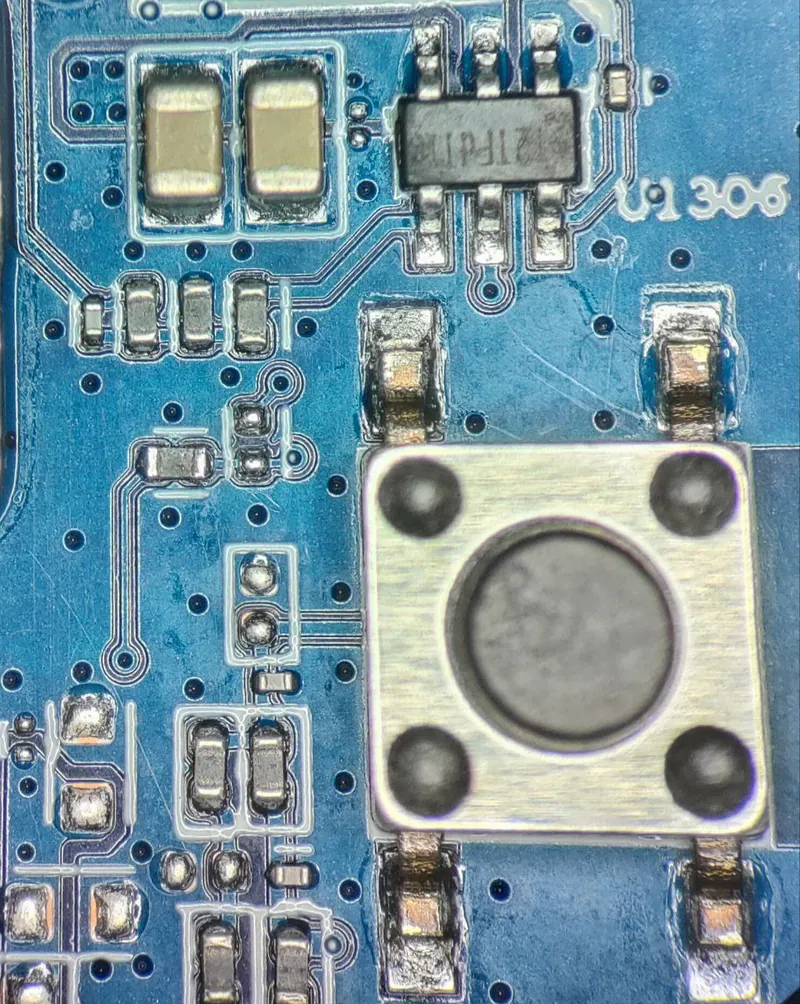
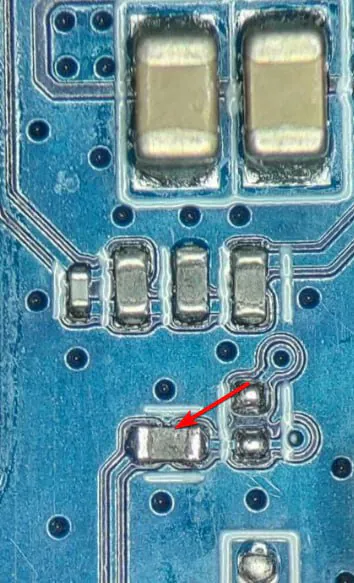
Move the resistor marked in the photos.
For RAX3000Me
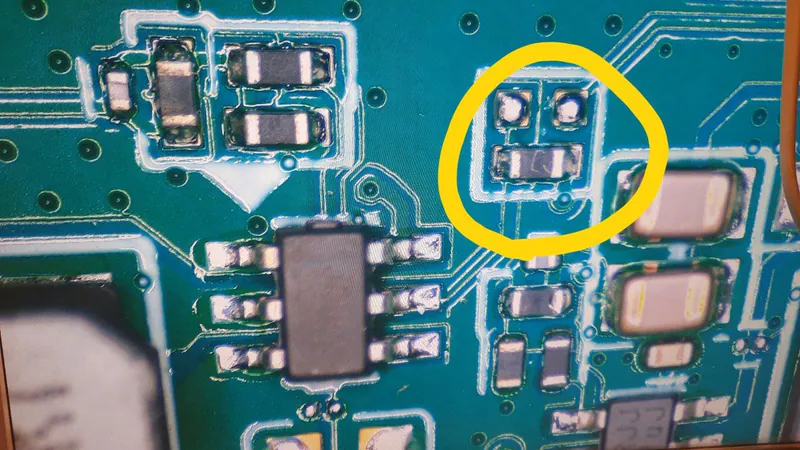
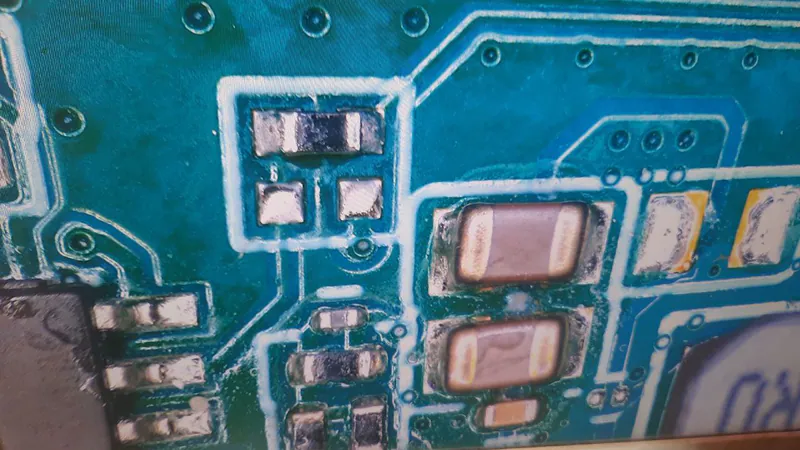
For RAX3000M